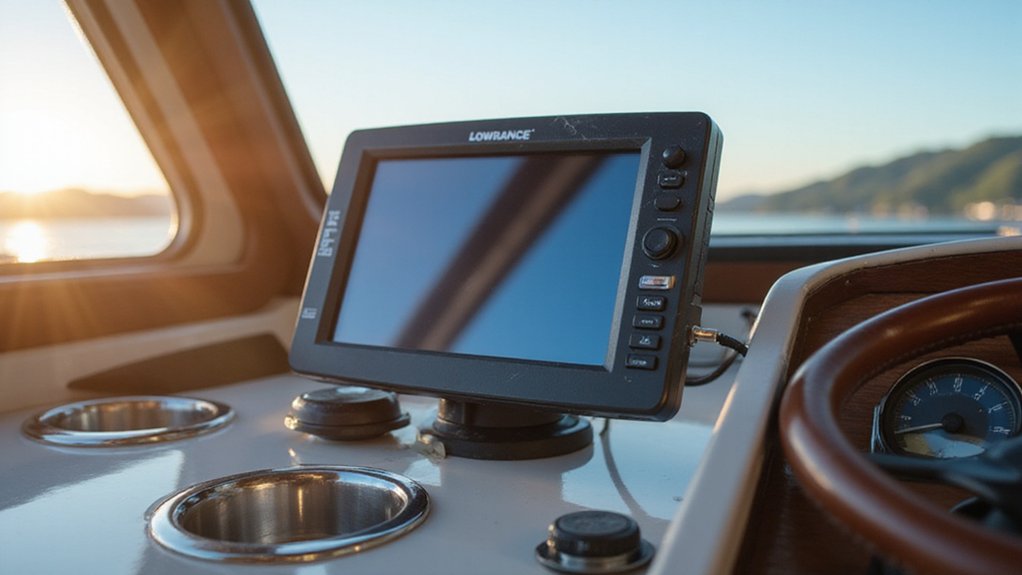
Updating your Lowrance Elite FS 9 might seem tricky at first, but with the right steps, it becomes straightforward. Ensuring your device runs the latest software keeps it functioning smoothly and gives you access to the newest features.
In this guide, you’ll learn how to check your current version, download the proper update file, and safely install it to keep your fishfinder up to date.
Follow along, and you’ll be ready to update your device confidently with minimal fuss.
Find the Right Elite FS 9 Software for Your Update
Start by visiting Lowrance’s official downloads page for the Elite FS series. This ensures you download the correct hardware-compatible firmware and avoids mismatched files. First, check your system’s About section to see your current software version; this helps you determine if an update is needed. On the downloads page, look for the latest release, which is currently version 26.1-72.1.28 as of February 2026. For boat owners, top fish finders often include models with large, clear displays like the Elite FS 9.
Make sure to download the appropriate file type: a .upd file. Do not download or use .tar files, as they are not compatible. Keep the download package intact and avoid placing it on a chart card before updating. Confirm that the release is specifically meant for your Elite FS 9 display size and connected accessories. This careful selection promotes brand interoperability across your Lowrance ecosystem and helps prevent installation errors. Once downloaded, your unit will recognize and apply the update correctly. To further reduce the risk of a failed install, ensure you follow the update steps in order as outlined in the official guide, similar to Garmin ECHOMAP procedures. Additionally, consulting a reliable speedometer comparison can help you assess how your navigation system’s performance stacks up against other marine electronics.

CHOOSE YOUR TRANSDUCER: No transducer is included, giving you the flexibility to build a sonar setup around your fishing needs
ACTIVE IMAGING 3-IN-1 INCLUDED: Find fish and structure with CHIRP sonar, SideScan and DownScan Imaging with FishReveal

Compatible with Lowrance Elite FS 9 displays
Prepare a Compatible SD Card for Your Elite FS 9 Update
To prepare your SD card for the Elite FS 9 update, use a blank microSD card that is 32 GB or smaller. Formatting it to FAT32 on your computer ensures compatibility, as larger cards often cause recognition issues with the device. Always format with a clean, freshly formatted card; this removes old files and helps prevent read errors during installation. Do not use a chart card for the update because mixing files can lead to confusion. Instead, dedicate a separate card solely for the update to keep navigation data separate. If your computer lacks a built-in card slot, use a card reader or adapter. Transfer the update file directly onto the root directory of the card, avoiding any nested folders. You should also ensure you do not cut power during the update to avoid issues. For catfish anglers, a dedicated update card ensures you can quickly return to using your fish finder for catfish without data conflicts. For comparison, the Garmin Echomap UHD2 93SV similarly requires a dedicated microSD for updates to maintain peak sonar performance. Once formatted and files are copied, insert the SD card into your Elite FS 9 to proceed with the update.
Load the Update File Onto Your Display
Download the correct Elite FS update package from the Lowrance website and copy the file directly onto your prepared microSD card’s root directory. Use a blank card to avoid confusion, and ensure only the update file is present on the card. Confirm the file size matches the original download to verify integrity. Remember that you can download the latest directly without installing any intermediate versions. For optimal performance, consider using a high-quality VHF antenna for reliable communication.
Insert the microSD card into the slot under the Lowrance logo on your Elite FS 9. Push it in until fully seated. Power on your display; it should automatically detect the update file. If it does not, go to the system menu and select the storage or update option. From the list of files, choose the Elite FS-specific update.
Review the on-screen prompt to confirm your selection. Once confirmed, the display will load and apply the update from the microSD card. Be patient during this process; do not turn off the display until the update finishes and the system restarts.

Compatible with Nintendo-Switch (NOT Nintendo-Switch 2)

Fast Speeds: Class 10, U3, and V30 speed class performance with read speeds up to 95MB/s for fast app loading (A1 rated), seamless file backup, and quick transfers.

4K UHD Video Recording: U3, V30, Class 10 micro SD card can seamlessly capture Ultra HD and Full HD videos without interruptions, which is ideal for drones and action cameras to capture 4K footage with ease
Start the Installation and Avoid Interruptions
Power on the display after loading the update file onto your microSD card and inserting it into your Elite FS 9. Confirm the on-screen prompt to start the installation immediately. Keep your boat’s battery fully charged and avoid cutting power during the process to prevent a restart-risk event. Don’t touch any controls that could stop the update. If performing over-the-air updates, maintain a stable Wi‑Fi connection and avoid switching networks until the update completes. Keep the storage device in place until the status bar reaches 100 percent, and wait for the unit to reboot on its own. For best results, ensure your SD card is a formatted 32GB SanDisk Extreme inserted fully into the designated slot to match the recommended media specifications. For stable support, consider pairing your unit with a top radar mount designed to handle heavy navigation equipment. Interrupting the process can cause common errors that force a reinstallation, leading to delays. Following these steps ensures a smooth, uninterrupted update and minimizes troubleshooting later. Because the unit relies on consistent power delivery during the write cycle, a sudden drop in voltage could corrupt the firmware, much like a low-light sensor requires stable input to avoid image degradation in low-visibility conditions. Before starting, verify you have the correct software files from the official support site to match your unit model.

Up to 60MB/s write speeds for fast shooting (Based on internal testing; performance may be lower depending upon host device interface, usage conditions and other factors. 1MB=1,000,000 bytes.)

CAPTURE LARGER THAN LIFE. Unlock startling 5K[3] point-of-view and pristine high-res stills with video speed class ratings of U3 and V30[4].

Compatible with Nintendo-Switch (NOT Nintendo-Switch 2)
Verify the New Software Version After Completion
Once the unit fully reboots, open the system settings menu by tapping the gear icon. Navigate to Settings > System > About. Check the displayed software version—it should match your update package and confirm correct hardware compatibility. If the version is older than the one you installed, the update didn’t complete successfully. The user interface will now reflect the new firmware, so you’ll notice any visual or functional changes immediately. Verify the versions of connected networked devices in the system update area; each device should show its current version. A mismatch indicates you need to reload the update file and run the process again. After performing a hard reset, recheck the About page to confirm that the correct version persists. Do not skip this step—final confirmation depends entirely on the version displayed after the reboot. For reference, top-reviewed devices like the Garmin Striker Vivid 7CV with GT20-TM transducer similarly display their firmware version in the system info menu after an update. When shopping for a kayak compass for backup navigation, checking a reliable mounting system ensures the device stays secure. Access the Help and Support section at laurance.com if the version remains incorrect. A comparison of top Lowrance fish finders for ice fishing shows that verifying the new firmware version is critical to ensuring optimal performance on the ice.

This tempered glass screen protector only designed for Lowrance Lite FS 9 Inch touchscreen.

Compatibility: Protective sunshades cover specially designed for Lowrance Elite FS 9 inch Fishfinder/Chartplotter, ensure optimal screen visibility in bright conditions.
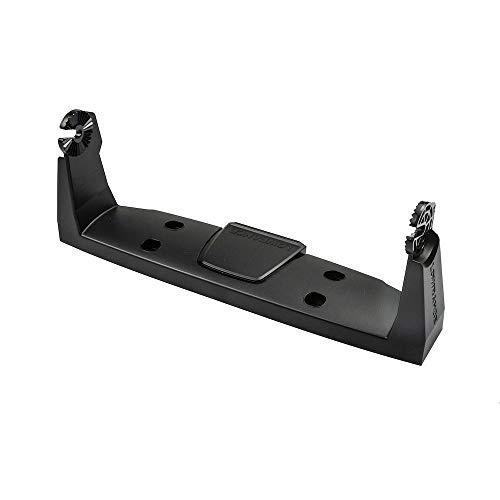
Designed for use with HDS-9 LIVE displays
Keep the Latest Files for Future Updates
Keep the latest files for future updates. The version confirmation ensures your unit runs the correct software, but don’t delete the update files right away. Instead, focus on smart file management by saving the original download to a dedicated folder on your computer. Also, create a backup on another drive, so you always have the current version available.
Maintain only the latest release as your master copy to avoid confusion. When Lowrance releases a new Elite FS package, download it promptly and delete the old version. When storing the file, use a clean microSD card—format it beforehand to prevent conflicts. Label the card clearly with the file’s version number and release date. Note these details alongside the file for easy reference. As seen with other brands like Garmin, understanding transducer compatibility helps ensure your unit integrates properly with the latest software. For optimal audio performance in your setup, pairing a reliable unit with top marine amplifiers can significantly enhance sound clarity and power.
This organized approach makes sure you’re always ready to update quickly, reducing guesswork and saving time. Periodically check the downloads page to replace outdated files before your next maintenance cycle. Keeping files up-to-date and properly stored ensures smoother updates and less hassle during critical moments.