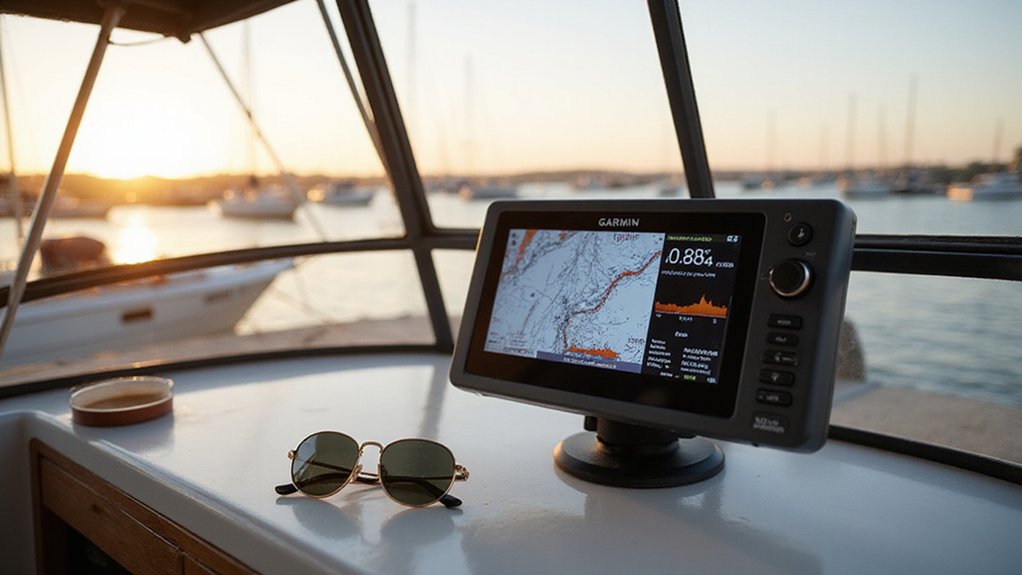
If your Garmin ECHOMAP isn’t updating properly, you’re not alone. Keeping your device’s software current is key to smooth operation and new features. The process can be done wirelessly with the ActiveCaptain app, through Garmin Express with an SD card, or using a preloaded update card.
Below, you’ll find everything you need for a quick, hassle-free update.
Before You Update: Confirm Your Garmin ECHOMAP Model and Software Version
Before you proceed, verify your Garmin ECHOMAP model and software version. Compare the installed version on your device with the one listed at garmin.com/support/software/marine.html. If your software is older, you need to update it to ensure compatibility and optimal performance. If they match, your device is already current. Never guess—installing the wrong firmware package can cause compatibility issues or even damage your device. Make sure to record your model number, current software version, and unit ID before moving forward. Following a step-by-step process, similar to connecting a horn relay, ensures a clean and reliable outcome. Knowing your device’s Unit ID is also necessary for registration and warranty purposes. For catfish anglers, ensuring your device has clear sonar imaging is critical for finding structure and deep holes. For ice fishing, many anglers prefer a model with MEGA 360 Imaging for superior target separation and situational awareness.

Easy-to-use 9” chartplotter with a bright, sunlight-readable touchscreen display with improved detail, clarity and viewing angle - Dimensions: 10.4" x 6.5" x 3.2" (26.4 x 16.6 x 8.0 cm) and Display size 7.8" x 4.5", 9.0" (19.8 x 11.5 cm, 22.9 cm).

Bright, high-resolution 5” glass capacitive touchscreen display lets you easily view your route

ECHOMAP UHD2 74CV WITH GT20-TM TRANSDUCER AND NAVIONICSAND U.S. COASTAL AND GREAT LAKES MAPPING
Update Your ECHOMAP Wirelessly With the Activecaptain App
Garmin’s ActiveCaptain app can wirelessly send software updates directly to your ECHOMAP, making it often the fastest way to keep your device current. To do this, start by establishing wireless connectivity: connect your mobile device to the ECHOMAP’s Wi‑Fi network and complete the device pairing process in the app. After pairing, disconnect your phone from the chartplotter and regain internet access via Wi‑Fi or cellular data. Next, go to the My Marine Devices section of the app, which automatically checks for available updates. When a new update is detected, download it directly to your phone. Then, reconnect to the ECHOMAP’s Wi‑Fi network. The app will automatically transfer the software package to your device. Once the transfer completes, your ECHOMAP will prompt you to install. Tap Install Now and confirm by selecting Yes. The device will restart, finalizing the update without needing a computer or memory card. Unlike a faulty fuel sender causing inaccurate readings, this update process relies on a reliable digital connection. Monitoring oil pressure is similarly critical for engine health, as an oil pressure gauge provides real-time feedback on lubrication system performance. To avoid a failed install, always ensure your device has a stable power source and do not interrupt the update mid-transfer.

⭕[Lay Flat to Charge] The watch is placed flat on the table to charge now, and it does not need to "Tilt Neck" to charge. Replacement for original charger cable: 010-12491-01. Compatible with all Garmin watches featuring a 4-PIN OVAL connector

✅【Multi-Directional Charging】: Our USB C to Garmin cable adapter features both right-angled and straight connectors, providing versatile charging options to suit your needs.

【Wide Compatibility】Compatible for Garmin Fenix 8 7 7S 7X Pro 6 6S 6X Pro 5 5S 5X Plus, Forerunner 965 955 945 935 745 265 255 245 165 55 45 45S Music, Approach S70 S62 S60 S50 S44 S42 S40 S12 S10 G12, X10, Instinct 3 2 2S 2X, Venu 3 2 plus 2S Sq, Vivoactive 6 5 4 4S 3, Quatix 7 6 6X 5, Vivosmart 5, Vivomove 3 3S Style Sport, Vivosport, D2 Charlie, D2 Delta PX, D2 Delta S, Impact Bat Swing Sensor, Tactix 8, Tactix 7, Tactix Charlie, BarkLimiter 2 2VT, Striker Cast, Rey, Swim 2, First Avenger, Darth Vader, Epix (gen 2), Enduro 3 2, Striker Cast GPS,Rey,First Avenger,Darth Vader,Enduro Smartwatch
Update Your ECHOMAP Using Garmin Express and a Memory Card
To update your ECHOMAP using a memory card, insert an SD card (8–32 GB) into your computer and open Garmin Express. Select your device, then choose the software update option. When prompted, select the correct drive and confirm the reformat warning. Garmin Express will then copy the update files onto the card.
Once the transfer is complete, safely eject the card. Turn on your ECHOMAP, wait for the home screen, and insert the card. Accept any on-screen agreement that appears. The update will then install automatically, enhancing firmware stability. If prompted to restart, leave the card inserted. Remove it only when instructed. For troubleshooting, ensure the card only contains the Garmin folder and that you have selected the correct device model during the update process.


Wide Compatibility: Ideal for your security camera, digital camera, dash cam and gaming console. Premium memory solution for smartphones and tablets

Guaranteed and Certified by SanFlas for your Garmin Device
Order a Preloaded Update Card From Garmin
To streamline your update process, you can order a preloaded update card directly from Garmin. This option allows you to skip using a computer altogether—simply insert the ready-to-use card into your ECHOMAP’s slot. Once inserted, on-screen prompts will guide you through the installation process, which typically takes several minutes. Some models require the card to stay inserted during restart to complete the update.
Before purchasing, verify that your echoMAP series unit is compatible with this type of update card by running Garmin’s compatibility checklist. Remember, this card is solely for software updates and is not the same as a map card. To place an order, contact Garmin customer support directly. Pricing varies, so be sure to ask for current details. This method is ideal if you do not have access to a Windows computer or prefer a more straightforward, hands-off update process.
![Garmin ECHOMAP UHD2 53CV Chartplotter/Fishfinder | US Inland Maps, GT20-TM [010-02590-51]](https://m.media-amazon.com/images/I/314dMbaaLhL._SL500_.jpg)
Garmin ECHOMAP 53cv UHD2 is a chartplotter that comes with 5” color display


Provides detailed digital topographic maps, comparable to 1:24,000 scale USGS maps.
Match the Correct Software Version to Your Specific ECHOMAP Model
Start by examining your ECHOMAP’s exact label, including the family name and size code. Garmin organizes updates based on these product families, so a Plus update will not work on an Ultra model. You’ll find separate software download pages for UHD, UHD2, Ultra, and Ultra 2, each with its own version history specific to that family.
Once you identify your model, compare the installed software version with the latest version listed for your particular bundle. If they match, your device is already up to date. Be careful not to cross-flash between different families or between touch screen and keyed variants, as this can cause compatibility issues. Always match the software update precisely to your model to ensure proper functionality and avoid unnecessary headaches.

Easy-to-use touchscreen with keyed-assist chartplotter with bright, sunlight-readable screens

Easy-to-use 7” chartplotter with a bright, sunlight-readable touchscreen display

Easy-to-use 9” chartplotter with a bright, sunlight-readable touchscreen display with improved detail, clarity and viewing angle
What to Do During the Update to Avoid Interruption
To avoid interruption during a chartplotter firmware update, your full attention is crucial. First, ensure your device is connected to a stable power source—use a reliable, dedicated charger rather than relying on batteries alone. Avoid starting the update if there’s any doubt about consistent power delivery, as a power loss can corrupt the installation. A stable power source is especially important when comparing the top fish finders for boats to ensure you choose a model that performs reliably during updates.
Turn on the chartplotter before inserting the memory card. Follow the on-screen prompts precisely—do not press buttons repeatedly or remove the card prematurely. Wait patiently for the device to indicate when the process is complete. If the screen pauses or stalls, give it extra time; forcing a restart risks making the device unresponsive. During the update, don’t use the chartplotter for navigation, fishing, or other activities. When prompted to restart, do so and leave the memory card inserted until the update fully finishes. Patience during this process helps prevent your device from becoming unresponsive or “bricked.” For a reliable fishing experience, ensure your chartplotter is compatible with top saltwater fish finders for quality and value.